
How to create a recurring invoice
If you bill the same client the same way every month — a retainer, a subscription, a maintenance contract — you can turn one saved invoice into a recurring schedule instead of duplicating it by hand each time. This walks through picking the source invoice, setting the monthly cadence, and managing the schedule afterwards.
Reviewed: 3 October 2026
1. Save the invoice you want to repeat
A recurring schedule is always built from an existing, saved invoice — it reuses that invoice's seller, buyer, line items, tax, payment and branding as the template for every future draft. Create and save the invoice normally first if you haven't already.
2. Use "Make recurring" from the Document Library
Open your Document Library (the Documents tab in your workspace) and find the invoice. Each saved invoice's row has a Make recurring link next to its other actions.
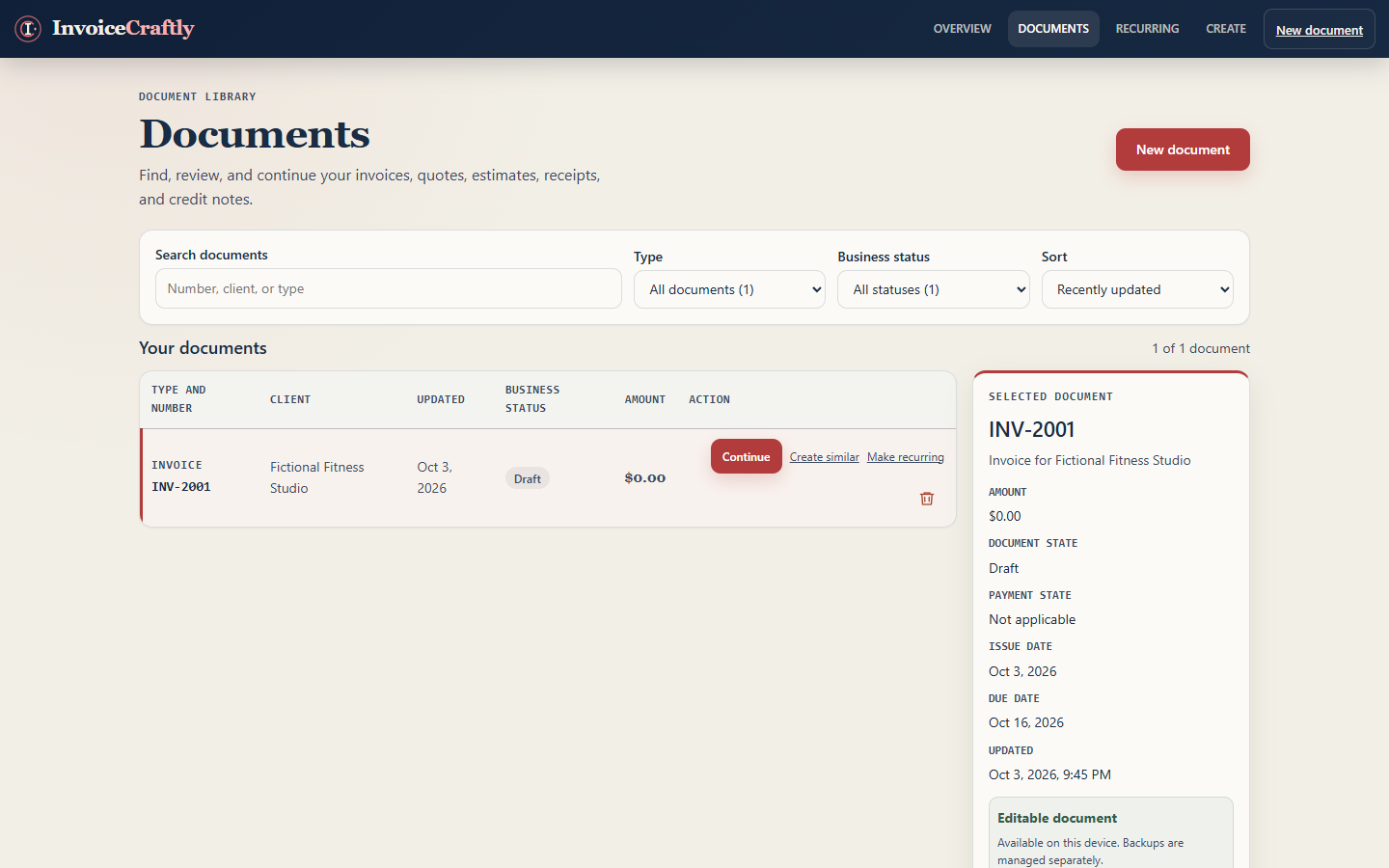
Only invoices offer this link — quotes, estimates, proforma invoices, receipts and credit notes don't, since a recurring schedule generates new invoice drafts.
3. The Recurring dashboard opens with that invoice already selected
Clicking Make recurring opens the Recurring dashboard with a schedule-creation form, and the invoice you came from is already chosen in the Source invoice field.
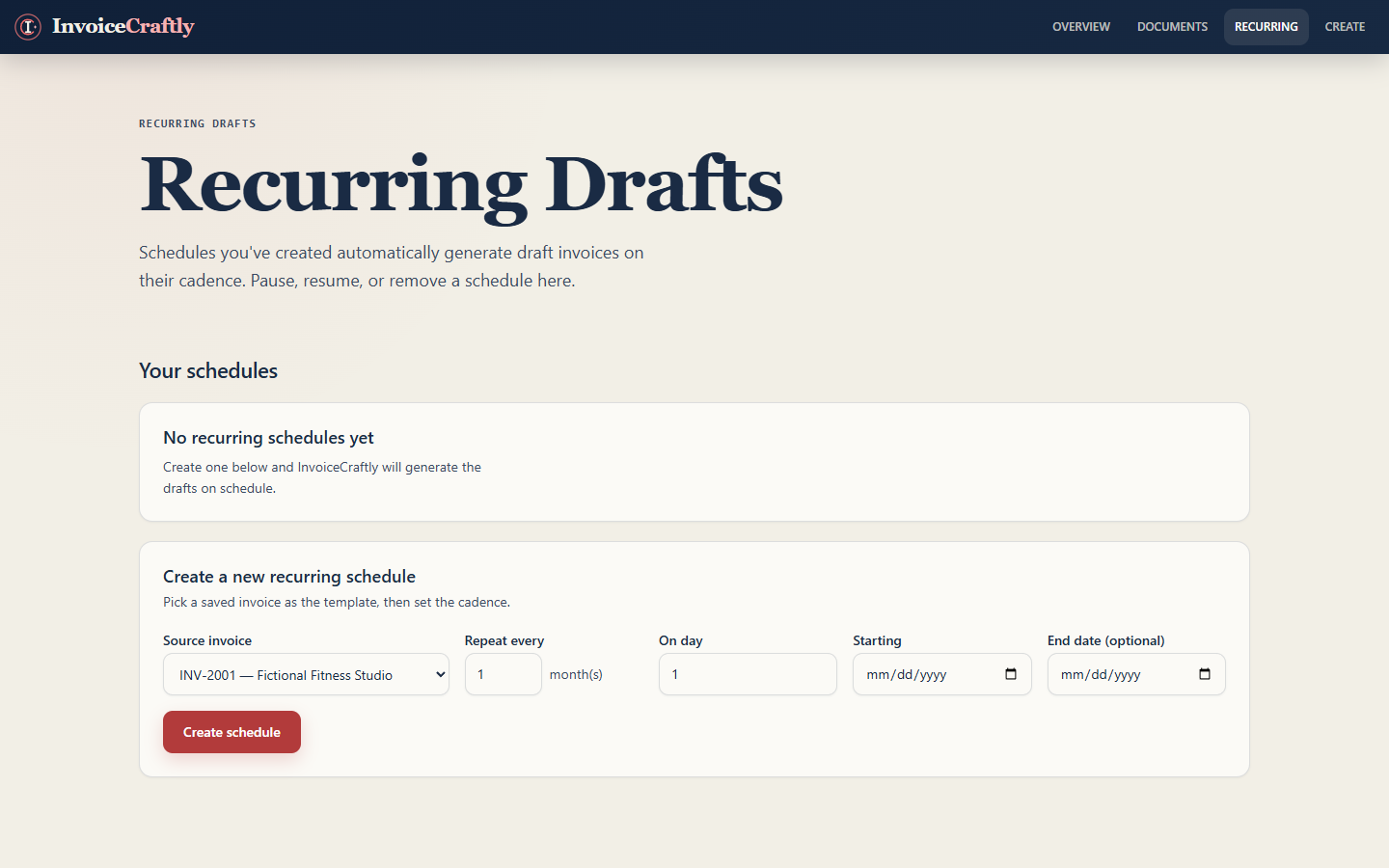
You can also reach this same form directly from the Recurring dashboard's nav tab and pick any saved invoice from the Source invoice dropdown yourself.
4. Set how often it repeats, then start it
Fill in the remaining fields: Repeat every N month(s), On day (1–31) of the month, and a Starting date. An End date is optional — leave it blank for a schedule with no fixed end.
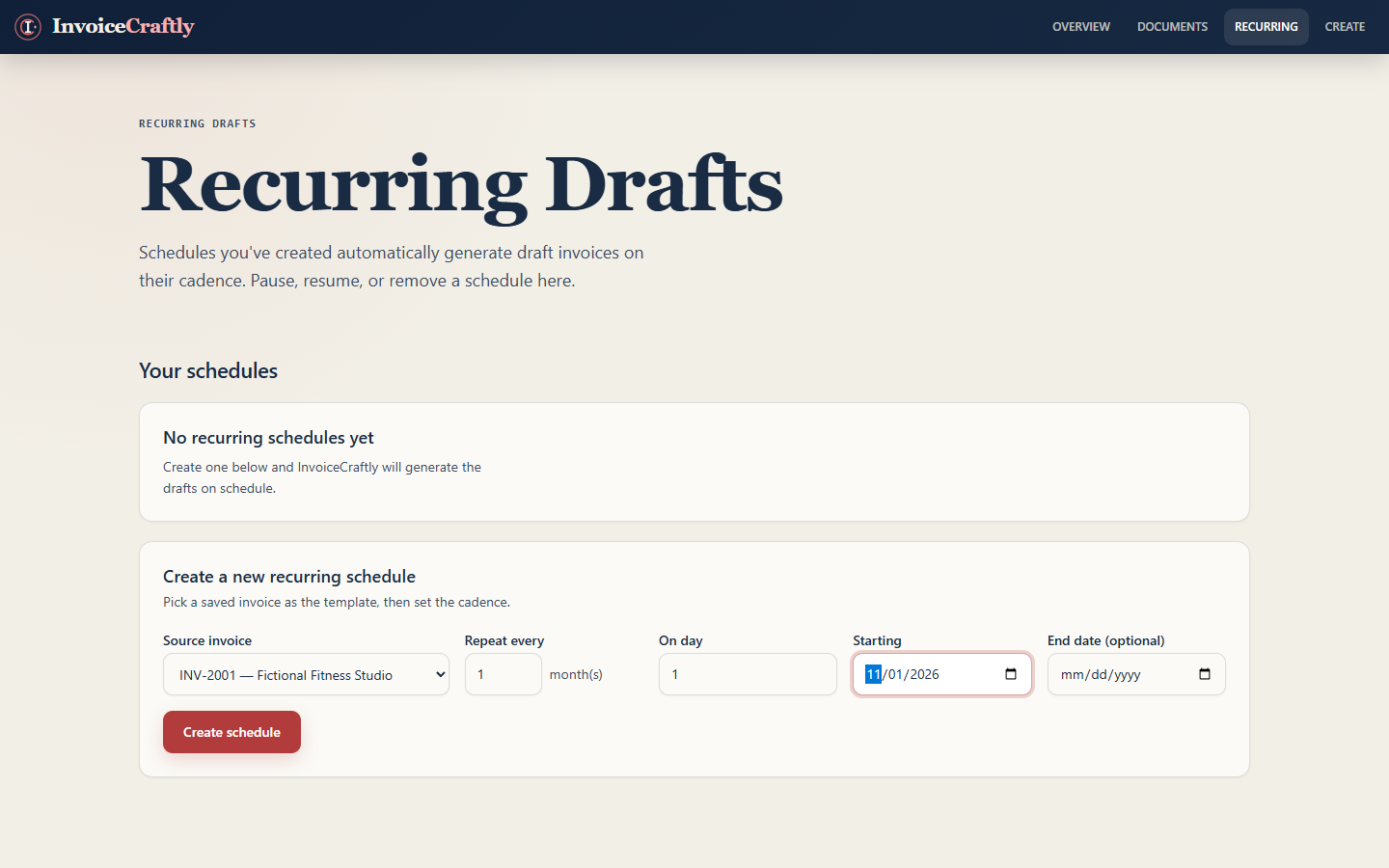
Select Create schedule. The schedule starts active immediately: any occurrence already due as of today is generated as a draft invoice right away, and future occurrences follow the cadence you set.
5. Manage the schedule from the Recurring dashboard
The dashboard lists every schedule with its cadence, next run date, how many drafts it has generated, and its status.
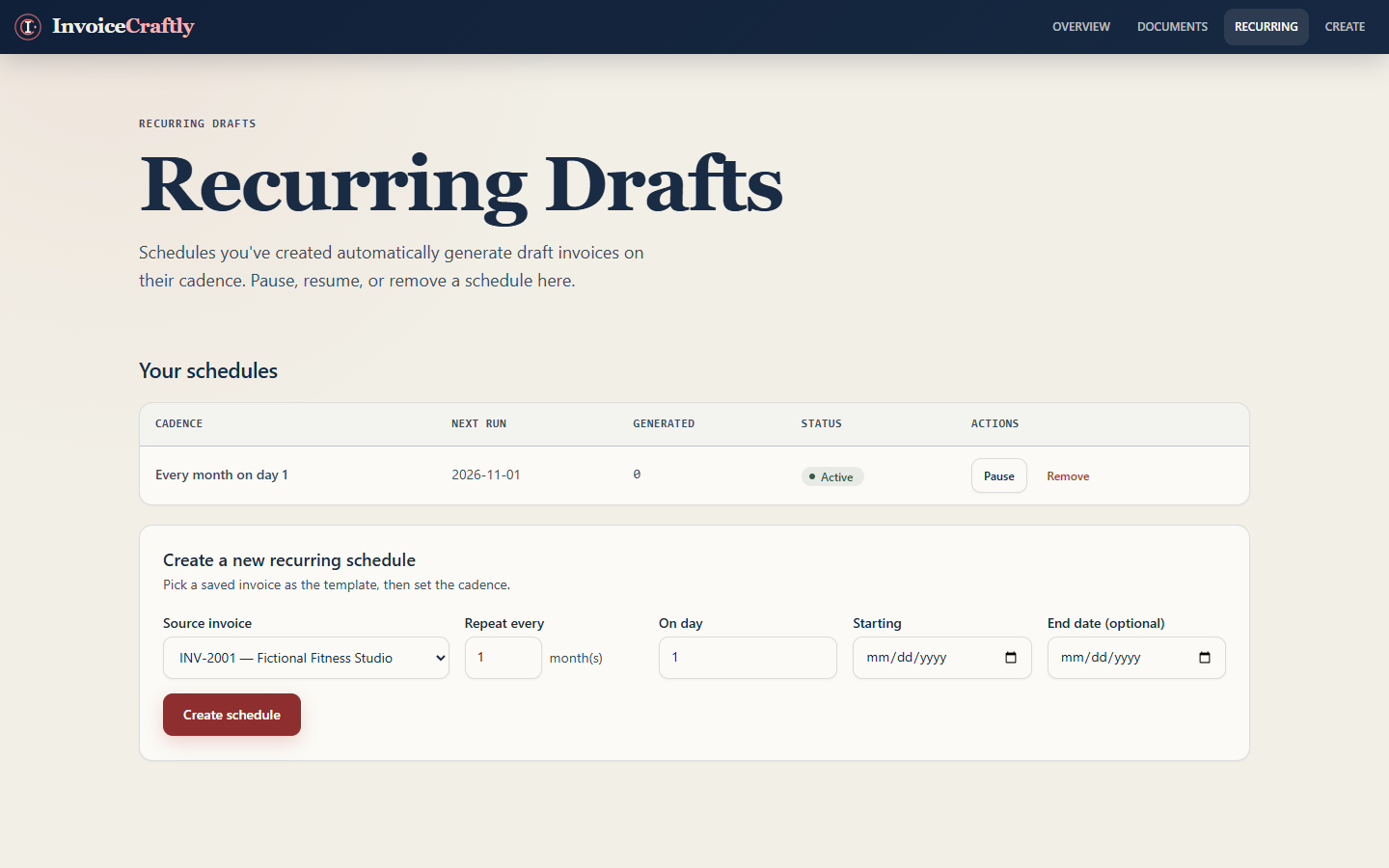
Use Pause to stop a schedule from generating further drafts without deleting it, Resume to reactivate a paused one, and Remove to delete it entirely. None of these actions touch invoice drafts the schedule has already generated — those stay in your Document Library like any other invoice.
Current scope of recurring schedules
Cadence is monthly only today — there's no weekly or yearly option, and no way to skip a single occurrence without pausing the whole schedule. Generated drafts are created as regular invoice drafts in your browser; they still go through your normal review and send process, nothing is emailed automatically. If you use Personal Cloud on the Recurring page, it's a manual backup and restore surface, like elsewhere in InvoiceCraftly — it is not continuous synchronization, so a schedule created on one device won't appear on another until you back up and restore.
Frequently asked questions
Can I make a quote or estimate recurring?
No — only saved invoices show a Make recurring link, since a schedule's job is to generate new invoice drafts.
What happens to drafts a schedule already generated if I remove the schedule?
They aren't affected. Removing a schedule stops it from generating further drafts; invoices it already created stay in your Document Library.
Can I change the cadence after creating a schedule?
Not from the dashboard today — pause or remove the schedule and create a new one with the cadence you want.
Does the generated draft use the latest version of the source invoice?
No — the schedule keeps a snapshot of the source invoice's seller, buyer, items, tax, payment and branding from when you created the schedule. Editing the original invoice afterwards doesn't change future generated drafts.
Turn your next repeat invoice into a schedule.
Open the invoice editor whenever you're ready.