Contractor · Estimate → Invoice → Receipt

Keep a renovation estimate, a deposit-and-balance invoice, and the final payment distinct.

Marcus is a fictional independent renovation contractor scoping a kitchen remodel for a fictional homeowner, the Alvarez household. The workflow moves from an estimated project cost to a deposit-and-balance invoice and a settled payment record once the job is finished.

Example scenario: The person and business described on this page are fictional and demonstrate a possible InvoiceCraftly workflow. This is not a customer testimonial.
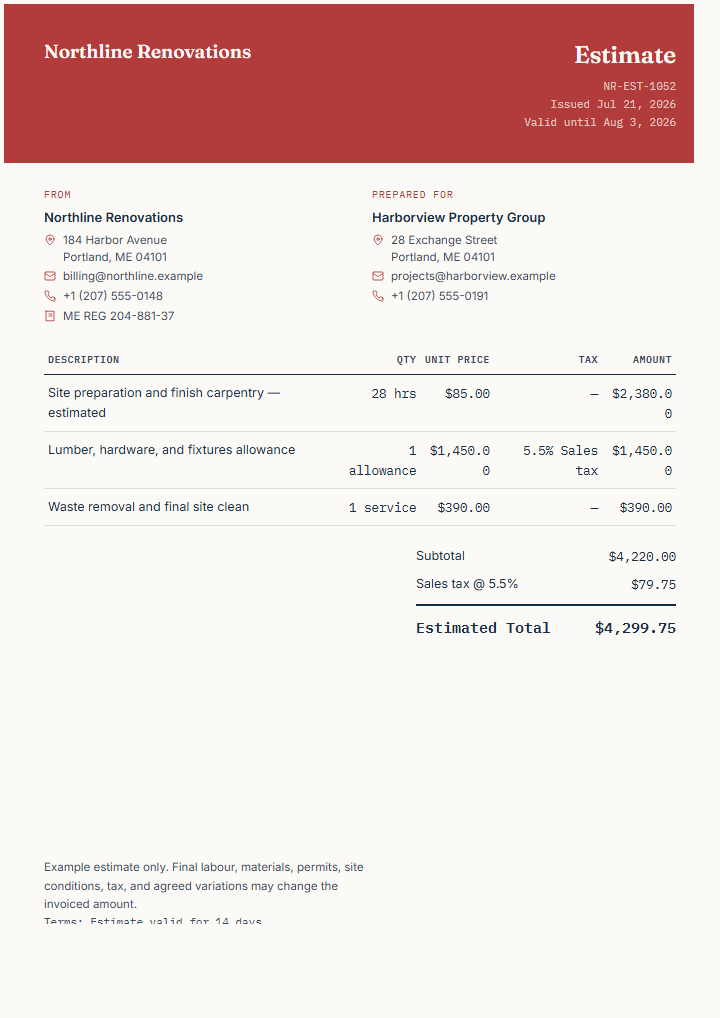
Fictional renovation estimate showing allowances, contingency, and validity terms
Illustrative InvoiceCraftly renovation estimate. Replace every field before sending your own.
01Estimate02Invoice03Receipt
Fictional business need

A renovation job needs an upfront scope, a deposit, and a final settled balance.

Marcus's fictional business, Ridgeline Renovations, has been asked to reprice and rebuild a dated kitchen. An estimate sets out the expected labour, materials, and contingency before work begins. Once the homeowner agrees and a deposit is collected, the invoice bills the completed phase and shows the remaining balance. A receipt then records the final payment once the job is closed out.

Stage 01

Estimate the renovation scope

Use an estimate when the final cost depends on site conditions or supplier pricing.

Create an estimate

Example line items

Estimated workUnitExample amount
Labour allowanceallowance$4,200
Materials allowanceallowance$5,600
Contingency and cleanup allowanceallowance$650

Plan for permits and scope changes

  • Flag that the permit application and inspection schedule can shift the start date and the allowances above.
  • Set out how a homeowner-requested change order will be priced and approved once work is underway.
  • State the deposit amount and confirm it will be applied against the final invoice total, not billed as a separate charge.
  • Confirm the contractor-licensing, permit, and consumer-disclosure requirements that apply before sharing the estimate.
View the contractor estimate template →
Stage 02

Invoice the completed phase

Bill the work actually supplied, and show the balance still owed after the deposit.

Use contractor template

Final billing example

Completed workUnitExample amount
Kitchen demolition and labourphase$4,450
Cabinetry, countertop, and fixturesmaterials$5,900

A $2,000 deposit was collected before work began; this invoice records the remaining balance of $8,350 due on completion.

Move from approval to billing

After the homeowner approves the scope in Marcus's chosen process, he creates a separate invoice rather than editing the estimate, keeping the original assumptions on record. He checks the client reference, completed phase, deposit already collected, and the remaining balance before sending.

Calculate the deposit and balance →
Stage 03

Confirm the walkthrough, then close out payment

Record the settled balance only after the final walkthrough is signed off and payment clears.

Create a receipt

Sign off before you record payment

  • Confirm the homeowner walked the finished kitchen and accepted the completed scope, including any approved change orders.
  • Match the paid amount against the invoice total, with the earlier deposit already applied against the balance.
  • Note the payment method and date, and release any retention or holdback only once the agreed conditions are met.
  • Reference the invoice and, where relevant, the final permit inspection sign-off connected to this payment.

Close out the job

The receipt confirms the renovation is paid in full rather than requesting further payment, so due terms stay hidden on this document type. Marcus files the walkthrough notes and any warranty information alongside the receipt, then archives the job in the system he uses for reconciliation.

Read the receipt format guide →

InvoiceCraftly features used

  • Estimate, invoice, and receipt document types.
  • Contractor starting point, allowances, deposit and balance notes, references, and terms.
  • Logo, accent colour, History on this device, duplicate workflow, and backups.
  • PDF, PNG, and SVG export after review.

What you remain in control of

  • Handle site visits, permits, change orders, deposits, and payment collection using the process you choose.
  • Choose when to create or duplicate each document, how to deliver it, and how to record payment in the systems you use.
  • Confirm the licensing, tax, and consumer-protection requirements that apply before issuing documents.
  • Export a workspace backup when these documents are important to your records or portability.